> ## Documentation Index
> Fetch the complete documentation index at: https://help.treble.ai/llms.txt
> Use this file to discover all available pages before exploring further.

# HSM Template State Change Webhook

> The HSM Template state change webhook is triggered when Meta changes the state of an HSM Template. Learn how to configure them in this article.

## Before you start

Before you start, make sure you have knowledge of what an HSM Template is. If you're not clear about it, you can read the article:

<Card title="HSM Template" icon="book" href="/en/docs/meta/hsm-templates/intro">
  Learn everything about HSM Templates. Learn how to create an HSM Template and use it in a flow.
</Card>

## HSM Template State Change

HSM templates have different states. We know that when we create a template, we must send it for approval to Meta. In this case, the template remains in **Under Review** state. When Meta approves the template, it remains in **Active** state. If Meta rejects the template, it will remain in **Rejected** state.

Why can these elements of an HSM Template change?

* Meta detects that your customers are marking your conversations as spam, which causes Meta to pause or deactivate your template.
* You made an edit to the template and Meta marks it as **Under Review**.
* Meta approves a previously disabled or paused template so it can be used again.

There are many scenarios that can cause these changes. Through webhook configuration, you can stay on top of these changes and take the necessary actions.

## How to configure an HSM Template state change webhook?

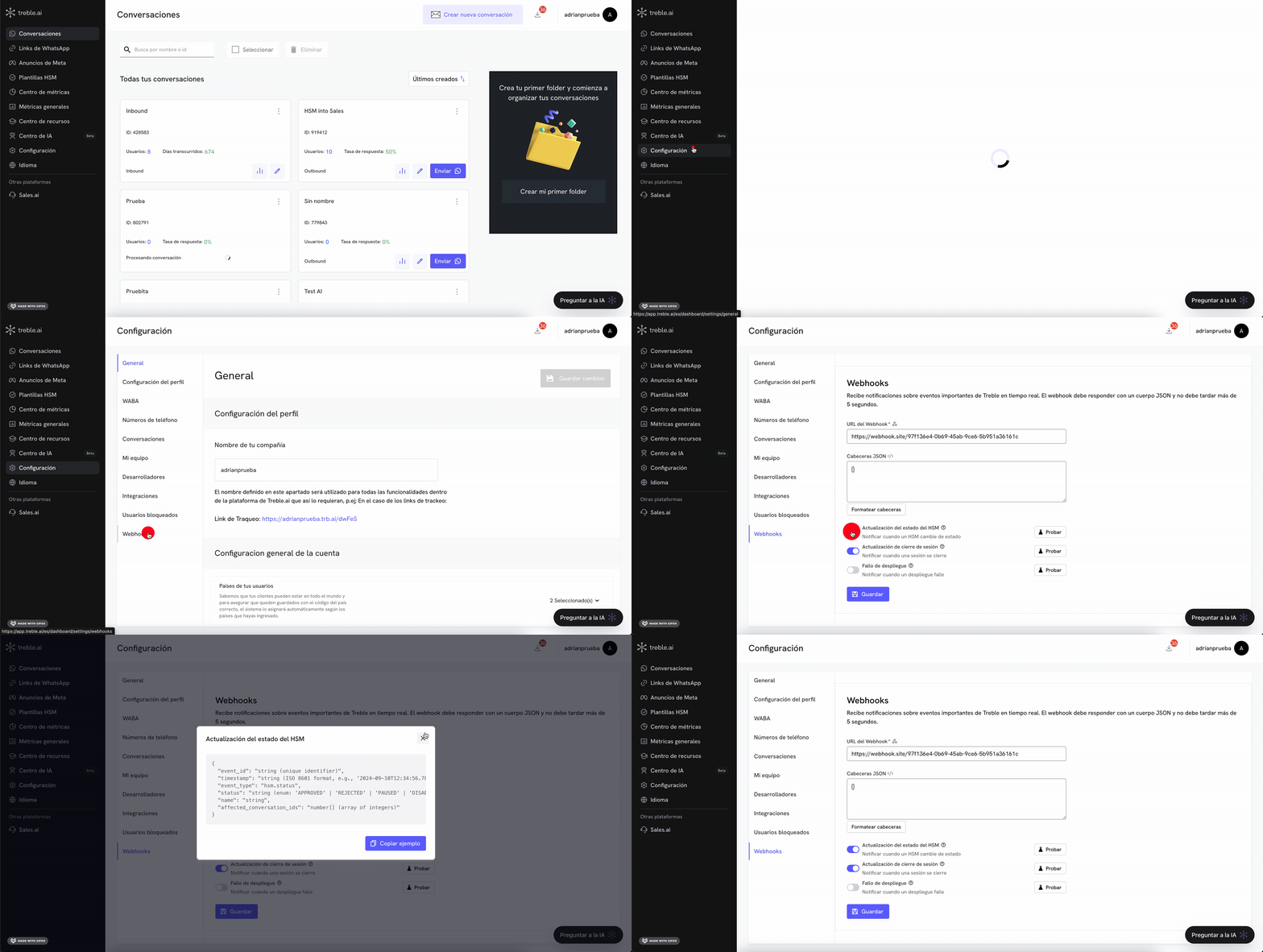
To configure an HSM Template state change webhook, you must follow these steps:

1. Enter Treble.ai through the following URL: <a class="article-link" href="https://app.treble.ai"><p>[https://app.treble.ai](https://app.treble.ai)</p><Icon icon="arrow-up-right-from-square" iconType="solid" /></a>

2. Go to the **Settings** section and select **Webhooks**.

3. You will see a **Webhook URL** field. This is the endpoint to which the HTTP request will be sent when an HSM Template state change occurs.

4. Enter your webhook URL in the **Webhook URL** field.

5. Click **Save**.

6. Enter Treble.ai through the following URL: <a class="article-link" href="https://app.treble.ai"><p>[https://app.treble.ai](https://app.treble.ai)</p><Icon icon="arrow-up-right-from-square" iconType="solid" /></a>

7. Go to the **Settings** section and select **Webhooks**.

8. You will see a **Webhook URL** field. This is the endpoint to which the HTTP request will be sent.

9. Enter your webhook URL in the **Webhook URL** field.

10. Click the **HSM Status Update** button to enable this type of notifications

11. Click **Save**.

12. Ready! Now, when an HSM Template state change occurs in Treble, the webhook will be triggered.
<img src="https://mintcdn.com/trebleai/X3Ys1WzX_gZPA4ia/images/webhook-center-hsm-status.gif?s=241c98be74815c7c4dbbae8504b03bc9" alt="Configure an HSM Template state change webhook" width="3454" height="1738" data-path="images/webhook-center-hsm-status.gif" />
