> ## Documentation Index
> Fetch the complete documentation index at: https://help.treble.ai/llms.txt
> Use this file to discover all available pages before exploring further.
# Stop Treble conversation and wait for your server response
> Normally, Treble expects your server's response to a webhook to be less than 10 seconds. If you need more time, you can stop the Treble conversation and wait for your server response with the `[REQUEST_TRIGGER]` option. Learn how to configure it in this article.
## Request Trigger
Every Treble webhook expects a response from your server in less than 10 seconds. If the time is exceeded, the webhook will be marked as timeout and the conversation flow in Treble will continue.
However, there are times when the Treble WhatsApp conversation must wait for your server's response. For example, when a customer sends a photo of their national ID to validate their account and your server must process the image and validate it. This might take more than 10 seconds.
For this, you can stop the Treble conversation and wait for your server response with the `[REQUEST_TRIGGER]` option. With the `[REQUEST_TRIGGER]` option, Treble will wait for your server to call the `POST /session/{session_external_id}/update` endpoint to continue the conversation.
```mermaid theme={null}
sequenceDiagram
participant User
participant Treble
participant Server
User->>Treble: Sends message (e.g. ID photo)
Treble->>Server: Sends webhook with session_id
note right of Treble: Waits for server response
Server-->>Treble: Processes and validates information
Server->>Treble: Calls POST /session/{session_external_id}/update
Treble->>User: Continues conversation
```
## How to configure a request trigger?
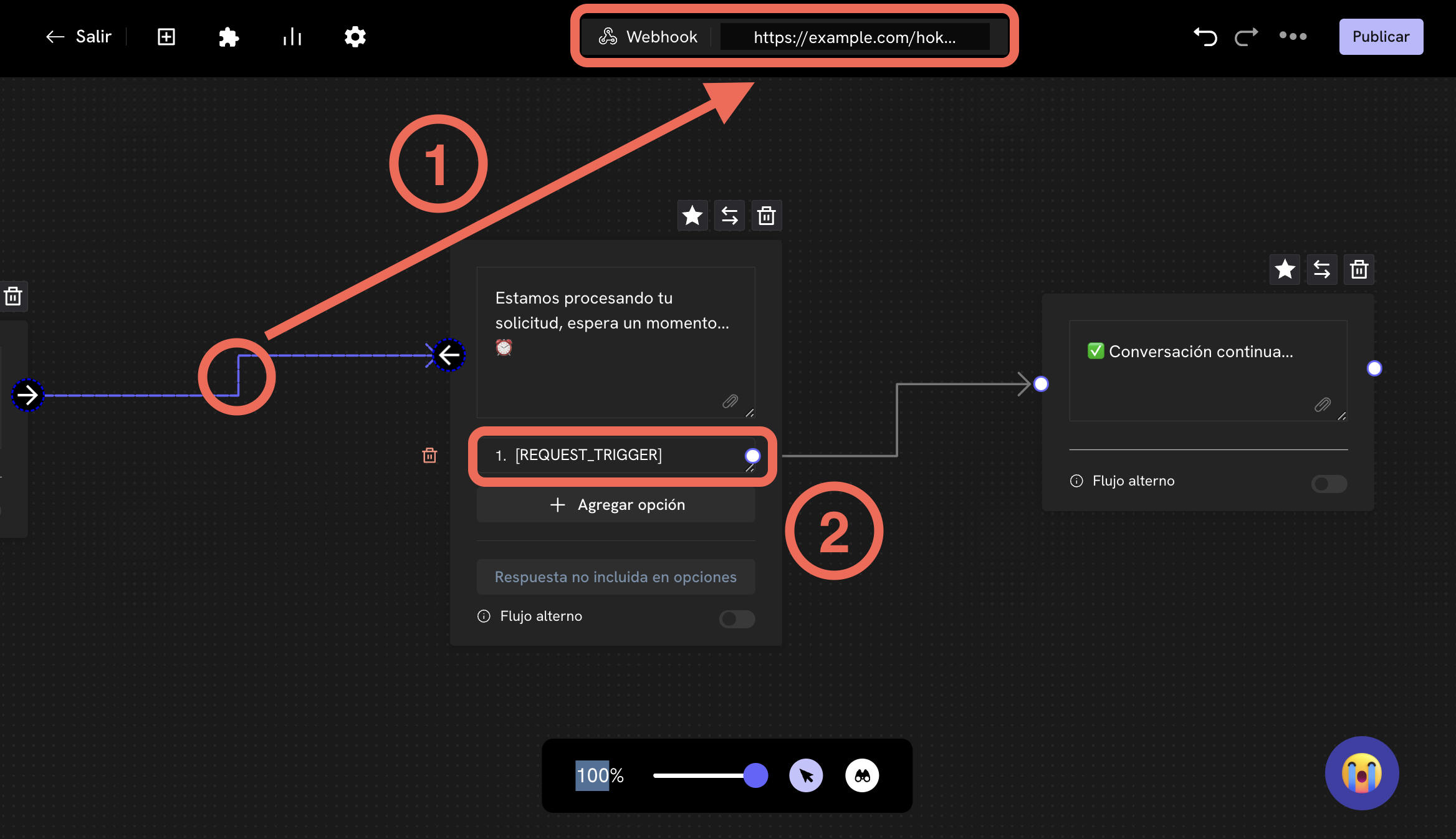
The configuration of a request trigger consists of two parts:
1. The webhook configuration that is done on the path that connects to the node (message block) where you want to stop the conversation.
2. The configuration of the message block that has a single response option which is the text: `[REQUEST_TRIGGER]`.
In the following image, you can see how you should configure your message flow to stop and wait for your server response.
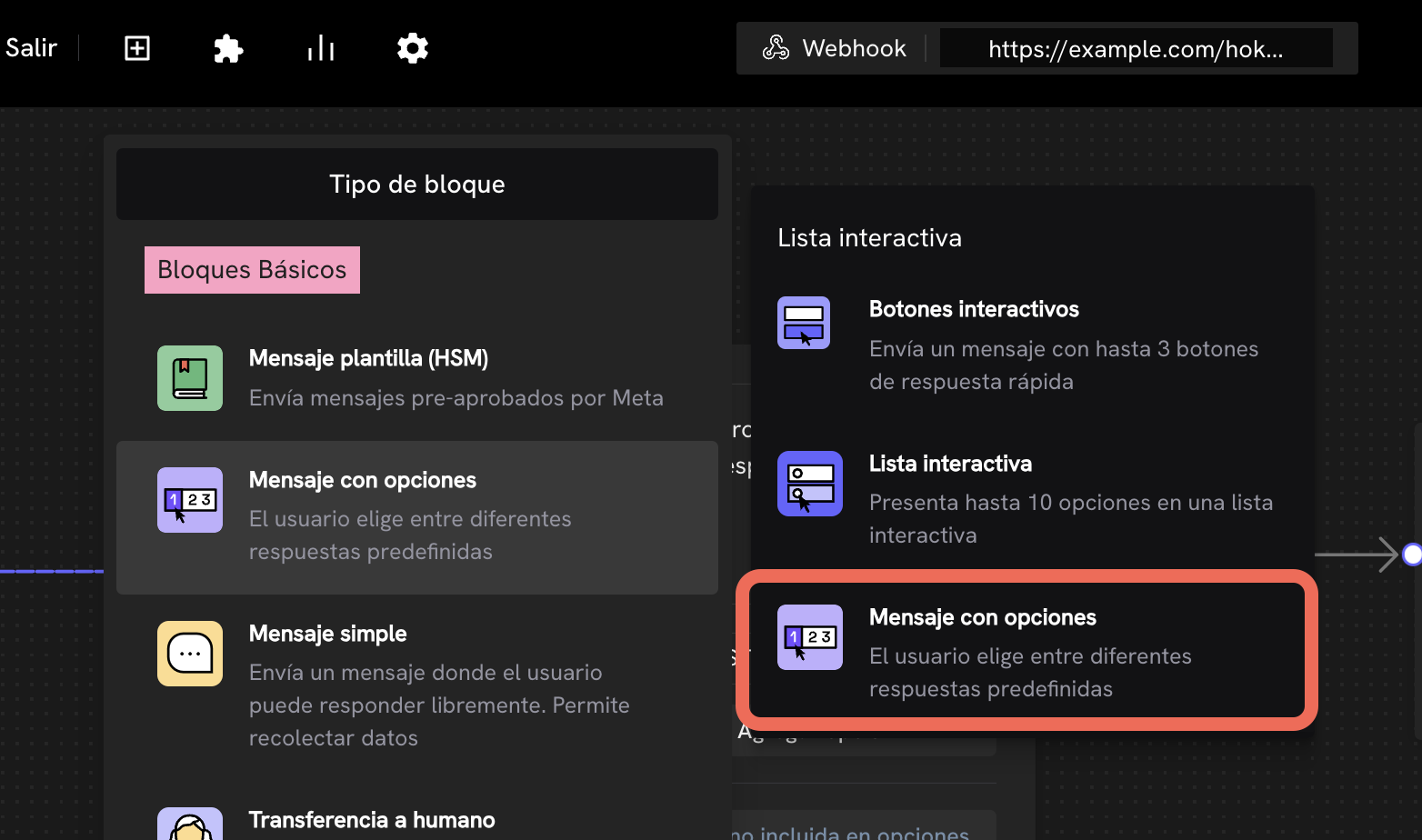
 Keep in mind that the message block you should use to stop the conversation and wait for your server response must be a non-interactive message block. That is, choose the **Message with options** option and not **Interactive Buttons**.
 Once this is done, when your user goes through the path that connects to the message block with the text `[REQUEST_TRIGGER]`, Treble will stop the conversation and wait for your server response.
### How to continue the conversation?
To continue the conversation, you must get the `session_id` of the Treble session that comes as part of the webhook request body.
For example:
```json theme={null}
{
"country_code": "+57",
"cellphone":"3161234567",
"session_id" : "abcsderfwer3252432423-1324325235",
"conversation_id": 1234,
"question": {
"type": "open",
"text": "Hello world"
}
"timeout_at": "2021-10-07 08:53:22.572123",
"user_session_keys":[]
}
```
Here we must extract the `session_id` and use it to call the `POST /session/{session_external_id}/update` endpoint.
Update a session to continue the conversation.
Remember that when making the call to the `POST /session/{session_external_id}/update` endpoint, you can also include in the request body the `user_session_keys`, that is, session variables that can be used to continue the conversation.
Ready! You have successfully configured a request trigger in your message flow.
Once this is done, when your user goes through the path that connects to the message block with the text `[REQUEST_TRIGGER]`, Treble will stop the conversation and wait for your server response.
### How to continue the conversation?
To continue the conversation, you must get the `session_id` of the Treble session that comes as part of the webhook request body.
For example:
```json theme={null}
{
"country_code": "+57",
"cellphone":"3161234567",
"session_id" : "abcsderfwer3252432423-1324325235",
"conversation_id": 1234,
"question": {
"type": "open",
"text": "Hello world"
}
"timeout_at": "2021-10-07 08:53:22.572123",
"user_session_keys":[]
}
```
Here we must extract the `session_id` and use it to call the `POST /session/{session_external_id}/update` endpoint.
Update a session to continue the conversation.
Remember that when making the call to the `POST /session/{session_external_id}/update` endpoint, you can also include in the request body the `user_session_keys`, that is, session variables that can be used to continue the conversation.
Ready! You have successfully configured a request trigger in your message flow.