> ## Documentation Index
> Fetch the complete documentation index at: https://help.treble.ai/llms.txt
> Use this file to discover all available pages before exploring further.

# Message Response Webhook

> Message response webhooks are triggered when a user responds to a message. Learn how to configure them in this article.

## How does it work?

When a user responds to a message, we can configure a webhook to be triggered and send an HTTP request to your endpoint configured in Treble. This webhook is one of the most important for implementing complex use cases, such as process automation or integration with other applications.

For example, you can configure a webhook to capture a customer's response when asked for their identification number. Treble will send an HTTP request to your endpoint configured in Treble with the customer's response which you can process in your application. Subsequently, you can even return information to the Treble conversation (flow) to display dynamic information obtained by your server, or route the conversation down another path.

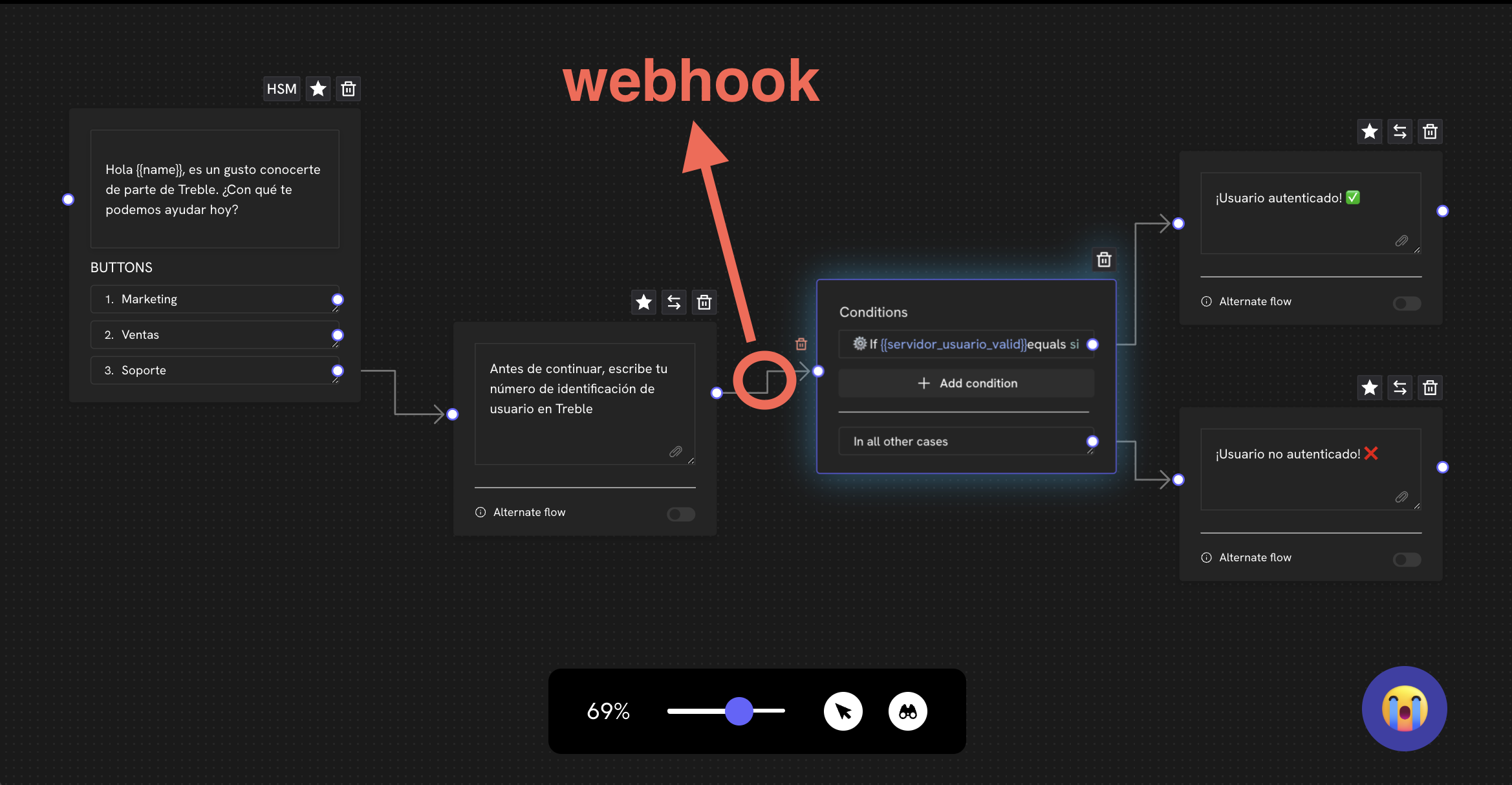
### Message Response Webhook Flow Diagram

In this example, the customer responds to a WhatsApp message with their identification number. Treble sends an HTTP request to your endpoint configured in Treble with the customer's response with the identification number. Your server processes it and returns information to Treble to continue the conversation.

<img src="https://mintcdn.com/trebleai/woBrUvSBPp-ldiW5/images/response-1.png?fit=max&auto=format&n=woBrUvSBPp-ldiW5&q=85&s=6f0c110ef3b600bde9c6051f0d7165e2" alt="Message Response Webhook Flow Diagram" width="2338" height="1214" data-path="images/response-1.png" />

```mermaid theme={null}
sequenceDiagram
    participant C as Customer
    participant W as Webhook
    participant S as Server
    participant T as Treble

    C->>T: Responds to WhatsApp message
    T->>W: Webhook triggered with identification: {customer_response}
    W->>S: Sends request with identification
    S->>S: Processes the webhook
    alt User exists
        S->>W: Response with server_resp: authenticated user
    else User doesn't exist
        S->>W: Response with server_resp: unauthenticated user
    end
    W->>T: Sends data back to Treble
    alt server_resp is authenticated user
        T->>T: Continues on authenticated user path
    else server_resp is unauthenticated user
        T->>T: Continues on another path
    end
```

## How to configure a message response webhook?

<Steps>
  <Step title="Enter Treble.ai">
    Enter Treble.ai through the following URL: <a class="article-link" href="https://app.treble.ai"><p>[https://app.treble.ai](https://app.treble.ai)</p><Icon icon="arrow-up-right-from-square" iconType="solid" /></a>
  </Step>

  <Step title="Creating a flow">
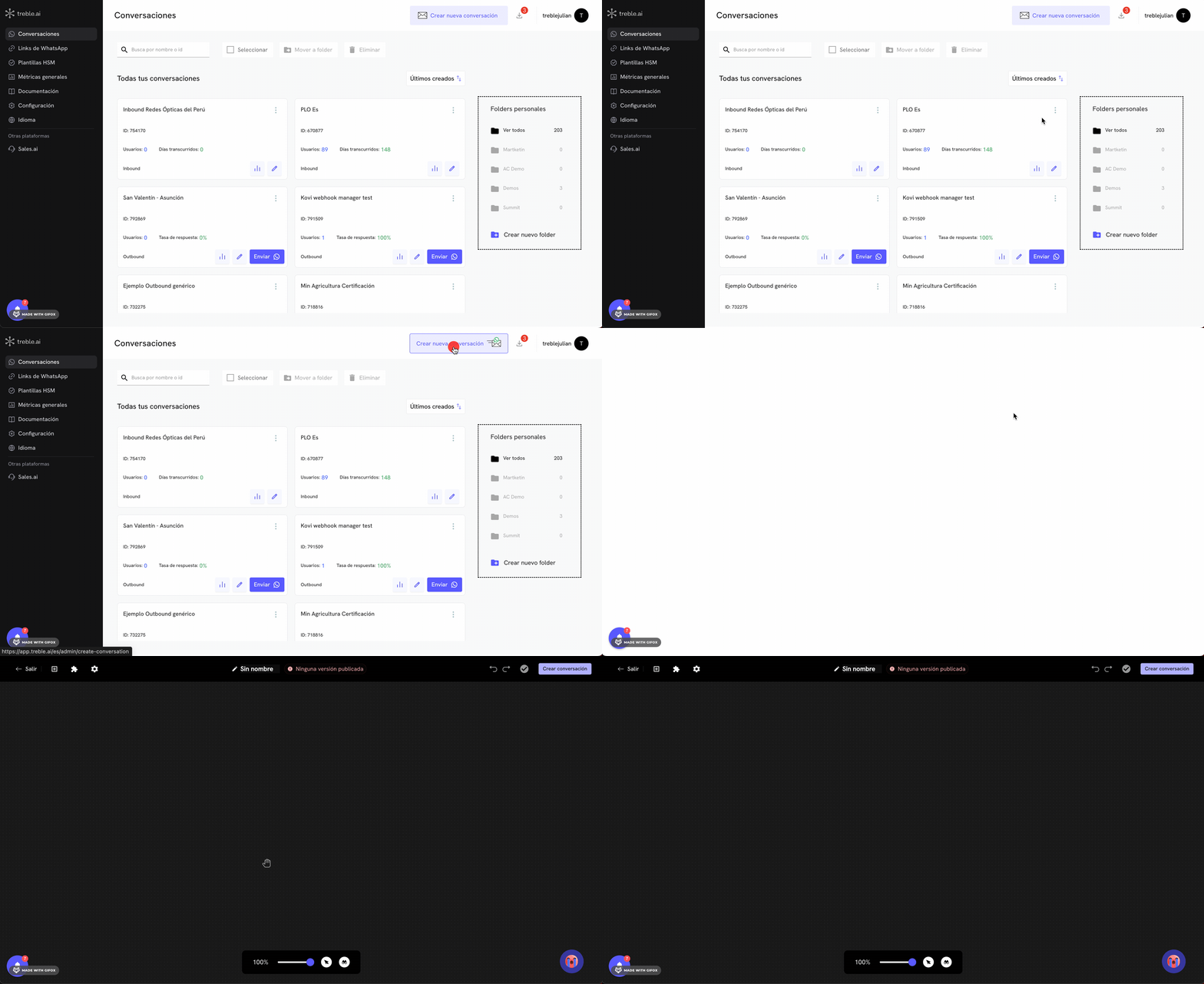
    Go to the "Conversations" section and click the **"Create Conversation"** button. You can also configure a message read webhook in an existing flow. For this, go to the "Flows" section and click the **"Edit" <Icon icon="pencil" iconType="solid" />** button of your flow.

    <img src="https://mintcdn.com/trebleai/aaCrgms9mLKayuxp/images/create-convo.gif?s=be4cd557da1bfa256303a5628ebc1768" alt="Create Conversation" width="2686" height="1466" data-path="images/create-convo.gif" />
  </Step>

  <Step title="Add message blocks">
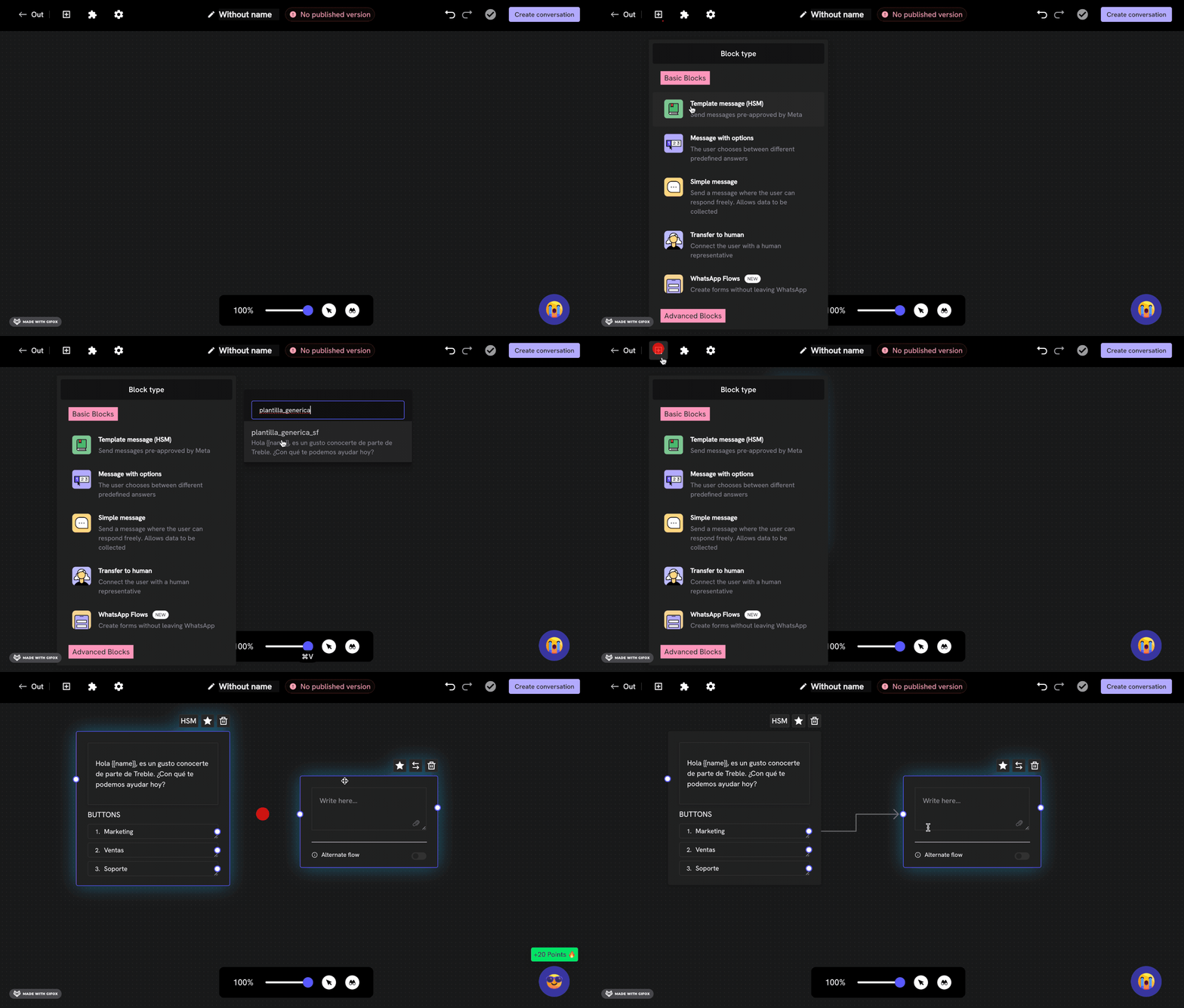
    Let's add the first message block. Click the **"Add block" <Icon icon="plus" iconType="solid" />** button. In this case, we're going to add a previously created and Meta-approved message template (HSM). Then we'll connect a simple message block with the HSM block. Here we're going to ask for the customer's identification number.

    <img src="https://mintcdn.com/trebleai/X3Ys1WzX_gZPA4ia/images/webhook-rd-2.gif?s=b5ff9b6f7fd1f2a56a7de42f5861dcd7" alt="Add a message block" width="1700" height="967" data-path="images/webhook-rd-2.gif" />
  </Step>

  <Step title="Activate webhook and add endpoint">
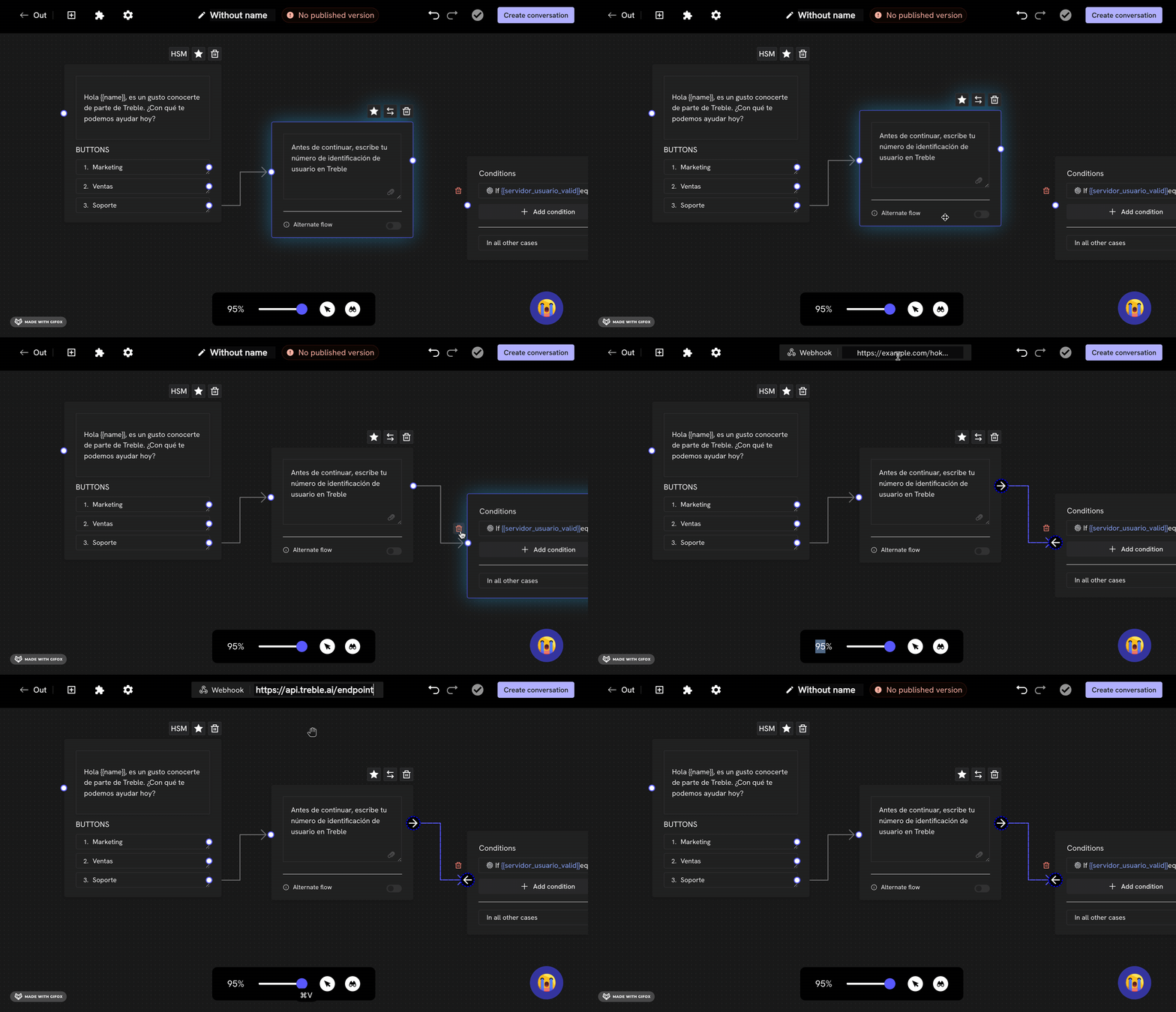
    Now, let's double-click on the arrow <Icon icon="arrow-right" iconType="solid" /> that comes out of the message block and connects to the response block. A text field will appear at the top. In this field, we're going to add the endpoint to which you want the HTTP request to be sent when this message is read.

    <img src="https://mintcdn.com/trebleai/woBrUvSBPp-ldiW5/images/message-response-1.gif?s=07494da324011276d6140682e9e66b8e" alt="Add a message block" width="2328" height="1338" data-path="images/message-response-1.gif" />
  </Step>

  <Step title="Specify the variable to capture the response">
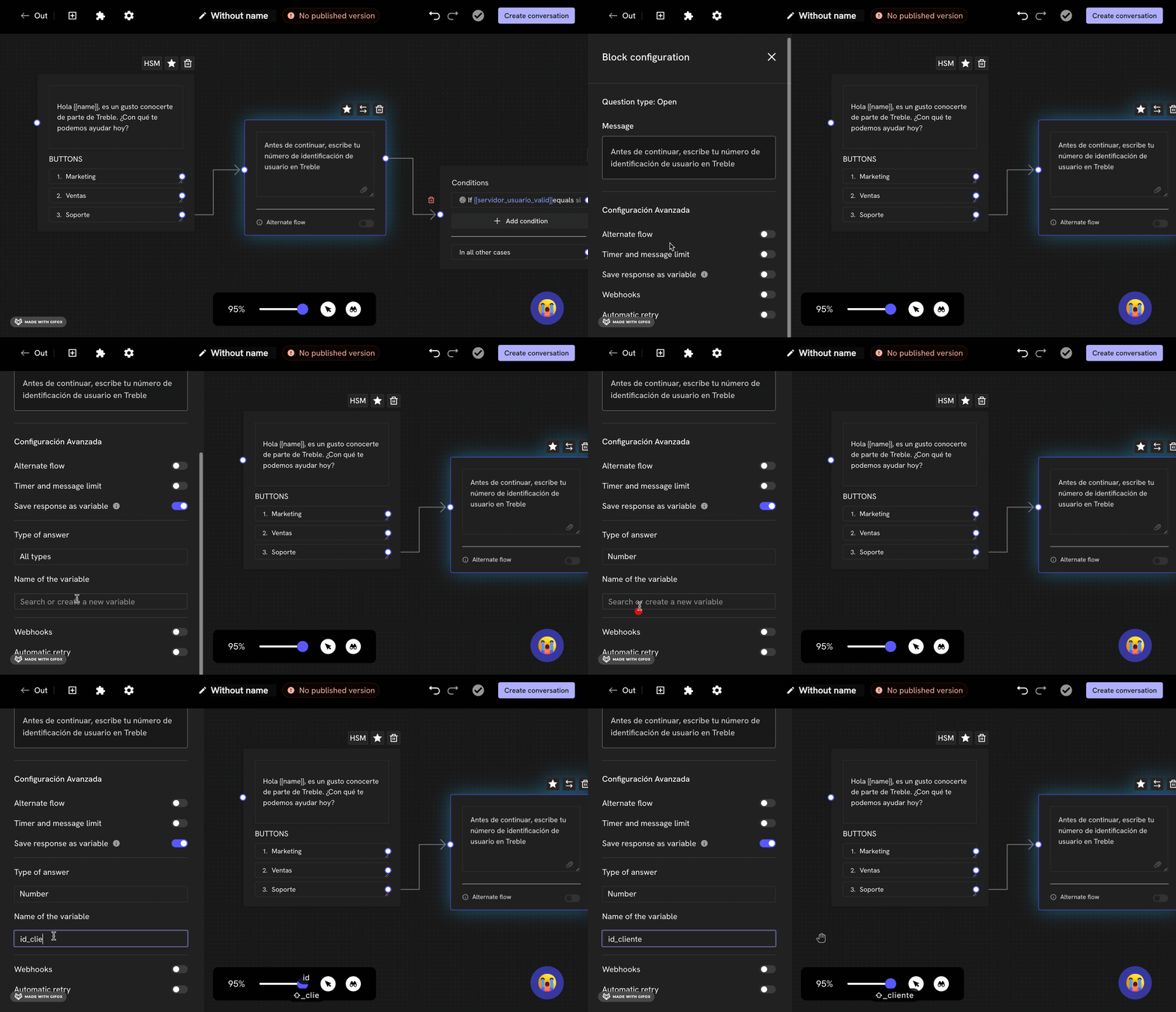
    It's necessary to specify the variable to capture the customer's response. Let's double-click on the question block where we're asking for the identification number. In the panel that opens on the left, let's click on the **"Save response as variable"** option. Two fields will appear:

    * **"Response type"**: Here you can choose the type of response you want to capture. In this case, we're going to choose **"Number"**.
    * **"Variable name"**: Here you can add the name of the variable you want to be saved. In this case, we're going to add `customer_id`.

    <img src="https://mintcdn.com/trebleai/woBrUvSBPp-ldiW5/images/message-response-2.gif?s=e8775e233e58f5aea7d1f2c1de3b9a04" alt="Add a message block" width="2330" height="1340" data-path="images/message-response-2.gif" />

    The use of variables in Treble is a key concept for process automation. You can read more about them in:
    <Card title="Variables in Treble" icon="book-open" href="/en/docs/build-with-treble/features/variables">
      Learn more about variables in Treble.
    </Card>
  </Step>

  <Step title="Save changes">
    For the webhook to be activated, you must save the changes. If you're in a new flow, click the **"Publish Conversation"** button to save the flow. If you're in an existing flow, click the **"Save"** button to save the changes.

    <Check>
      Ready! Now, when someone responds to your message, the webhook will be triggered and send an HTTP request to your endpoint configured in Treble. The request body will contain information about the response event.
    </Check>
  </Step>
</Steps>

<Card title="Message Response Webhook Body" icon="book-open" href="/en/api-reference/webhooks/message-response">
  Learn more about the message response webhook body.
</Card>

## Advanced Tutorial - Your Server Response

In the step-by-step above, we saw how to configure a message response webhook in Treble. Now, let's see how to process the customer's response in your server. For this, it's necessary that your server has a public endpoint to which the HTTP request can be sent.

### Step by Step

1. **Configure your server:**
   Make sure your server is configured to receive HTTP requests. You can use a framework like Express in Node.js to facilitate this process.

2. **Create an endpoint for the webhook:**
   Define an endpoint in your server that can receive the webhook requests.

3. **Process the request:**
   Extract the relevant information from the request and perform the necessary actions, such as verifying if the user exists.

4. **Send a response to Treble:**
   Return a response to Treble with the processed information, such as the user's authentication status. The response must be a JSON with the following format:

   ```json theme={null}
    {
        "user_session_keys":[
            {
                "key":"server_user_valid",
                "value":"yes"
            }
        ]
    }
   ```

The `user_session_keys` is an array of objects that contains the key and value of the response. For this example, the key should be `server_user_valid` and the value should be `yes` if the user exists or `no` if they don't exist. However, you can send back to Treble any information you need to continue the conversation. Such response can contain more variables that can be used in the flow.

Example:

```json theme={null}
{
    "user_session_keys":[
        {
            "key":"user_name",
            "value":"John Doe"
        },
        {
            "key":"last_purchase_date",
            "value":"2025-01-01"
        }
    ]
}
```

### Code Example

Here's a basic example of how you could implement this in Node.js:

```javascript theme={null}
const express = require('express');
const app = express();
app.use(express.json());

app.post('/webhook', (req, res) => {
    // Extract the user identification from user_session_keys
    const identification = req.body.user_session_keys.find(key => key.key === 'customer_id')?.value;

    // Simulate user verification
    const userExists = verifyUser(identification);

    // Prepare the response for Treble
    const server_resp = userExists ? 'yes' : 'no';

    // Send the response back to Treble with the correct structure
    res.json({
        user_session_keys: [
            {
                key: "server_user_valid",
                value: server_resp
            }
        ]
    });
});

function verifyUser(identification) {
    // Logic to verify if the user exists
    // Here you can query a database or external service
    return identification === '12345'; // Example verification
}

app.listen(3000, () => {
    console.log('Server listening on port 3000');
});
```

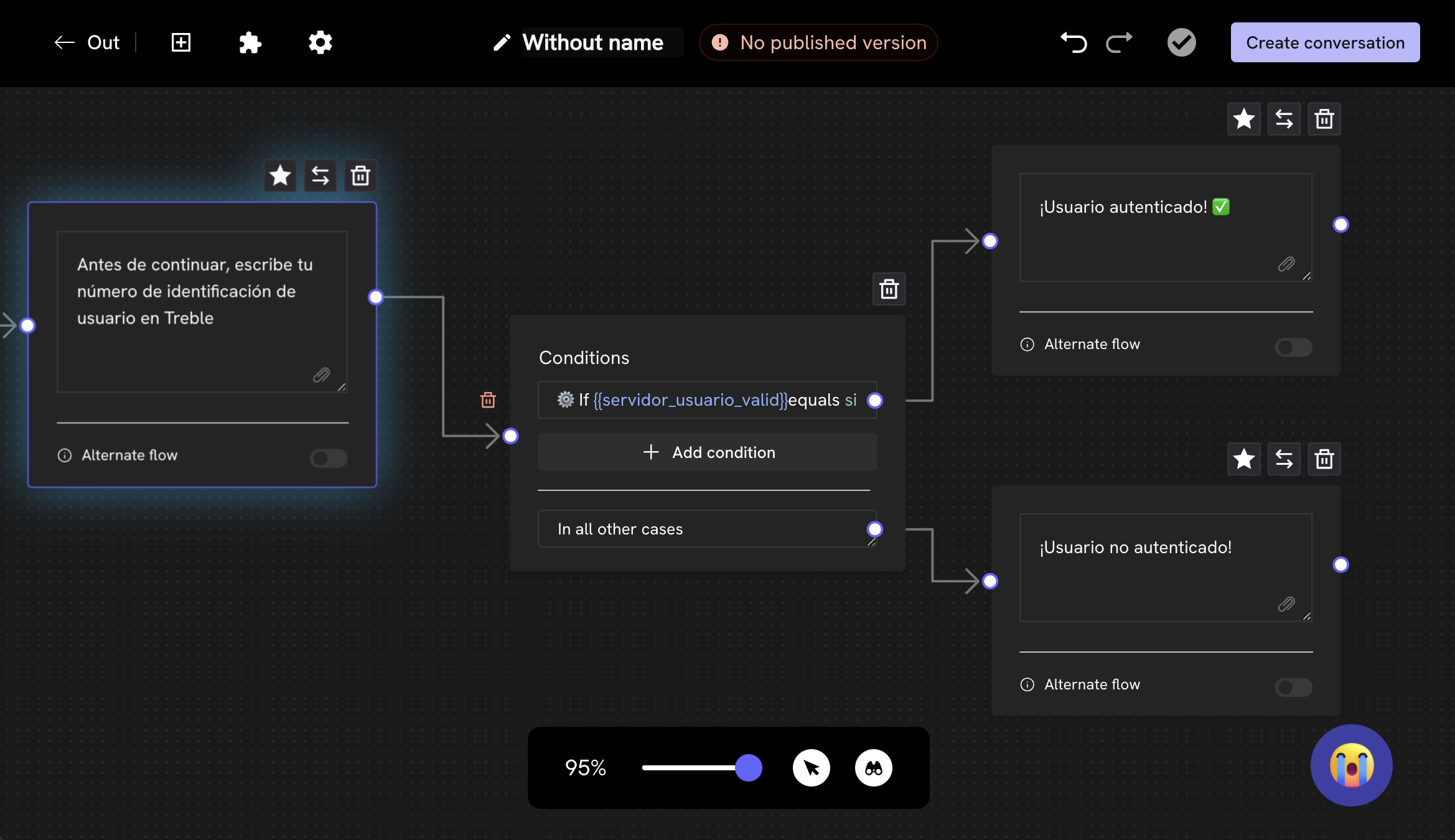
5. Back in your conversation (flow) in Treble, we connect a condition block to evaluate the server response. Note how the `server_user_valid` variable is a session variable that is saved in the flow and is the response that is sent to the server. The condition block is an "If" type block and evaluates if the `server_user_valid` variable is equal to `yes`. If so, it continues on the authenticated user path. If not, it continues on another path.

<img src="https://mintcdn.com/trebleai/woBrUvSBPp-ldiW5/images/message-response-3.png?fit=max&auto=format&n=woBrUvSBPp-ldiW5&q=85&s=d2f1c7116a9d840822dcc5b4aefa3624" alt="Add a message block" width="2338" height="1350" data-path="images/message-response-3.png" />

<Check>
  Ready! We have configured a message response webhook in Treble. Now, when someone responds to your message, the webhook will be triggered and send an HTTP request to your endpoint configured in Treble with the customer's response. Your server processes it and returns information to Treble to continue the conversation.
</Check>

## Keep in mind

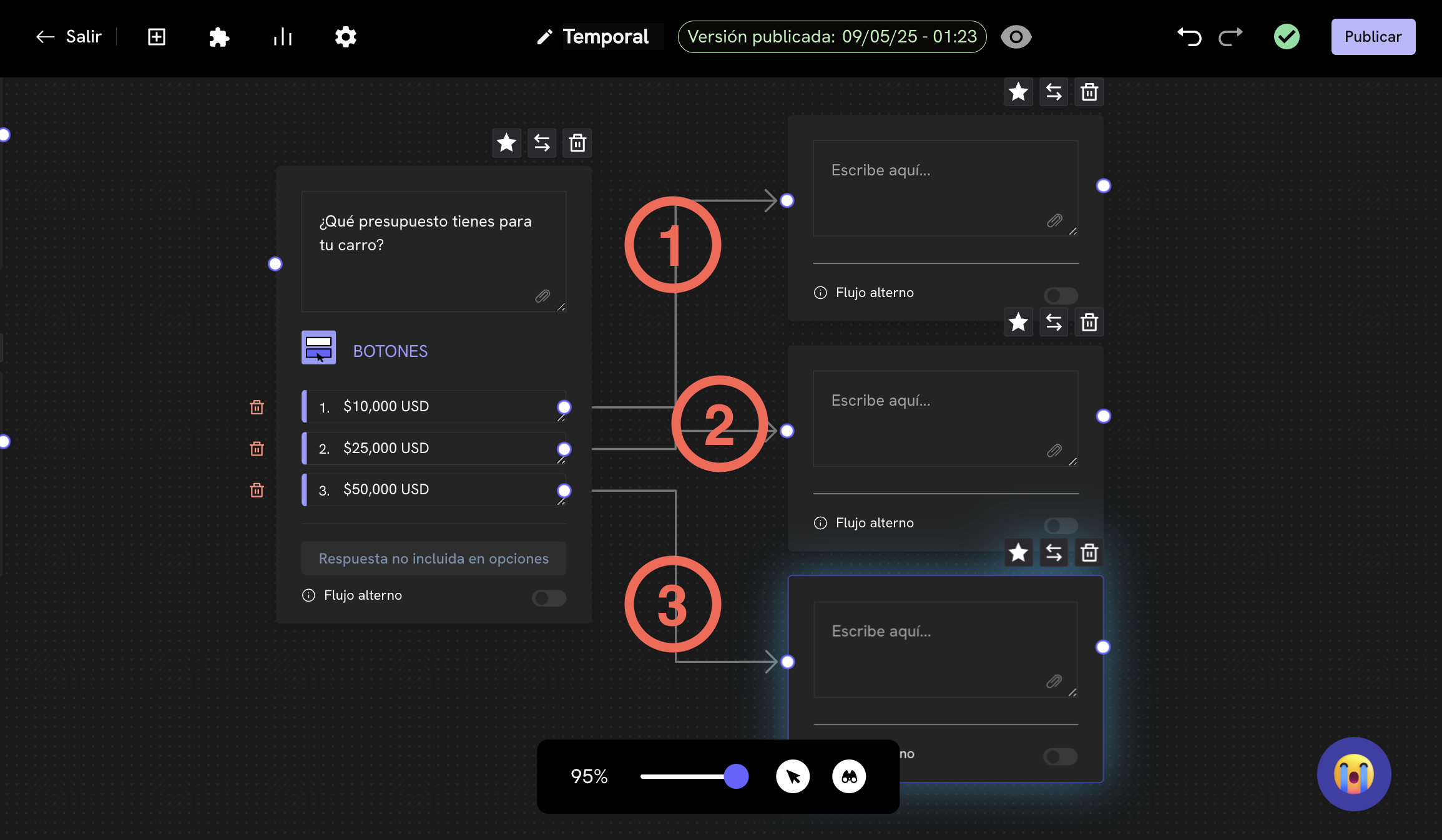
* You must configure the response webhook for each response (arrow <Icon icon="arrow-right" iconType="solid" />) that comes out of a message block. If you configure it on a single response or the first one, it will only be triggered for the first response.

In the following image, you can see how you must configure the response webhook for each of the 3 responses that come out of a message block.

<img src="https://mintcdn.com/trebleai/woBrUvSBPp-ldiW5/images/message-response-4.png?fit=max&auto=format&n=woBrUvSBPp-ldiW5&q=85&s=9af213e498cb1a584a816027f07926e3" alt="Configure response webhook" width="2310" height="1346" data-path="images/message-response-4.png" />

<Warning>
  Your server's response to the webhook cannot take more than 10 seconds. If your server takes more than 10 seconds to respond, the webhook will be marked as timeout and the conversation flow in Treble will continue. You can extend the response time with the `[REQUEST_TRIGGER]` option. For more information, you can read the article: <a class="article-link" href="/en/api-reference/webhooks/request-trigger">Stop Treble conversation and wait for your server response</a>.
</Warning>