> ## Documentation Index
> Fetch the complete documentation index at: https://help.treble.ai/llms.txt
> Use this file to discover all available pages before exploring further.
# Message Read and Delivery Webhooks
> Message read and delivery webhooks are triggered when a user reads or receives a message. Learn how to configure them in this article.
## How does it work?
Through Treble, which uses WhatsApp Business API, when a user reads or receives a message, we can configure a webhook to be triggered when this occurs.
### Example use case
Suppose you are a clothing sales company and you want to know when a customer has read or received your first marketing message that talks about a promotion for your new clothing collection. To the first 100 customers who subscribe to your newsletter, you will offer a 10% discount on their first purchase.
For this, you can configure a message read webhook in Treble. When a customer reads or receives your message, the webhook will be triggered and send an HTTP request to your endpoint configured in Treble.
## How to configure a message read or delivery webhook?
Enter Treble.ai through the following URL:
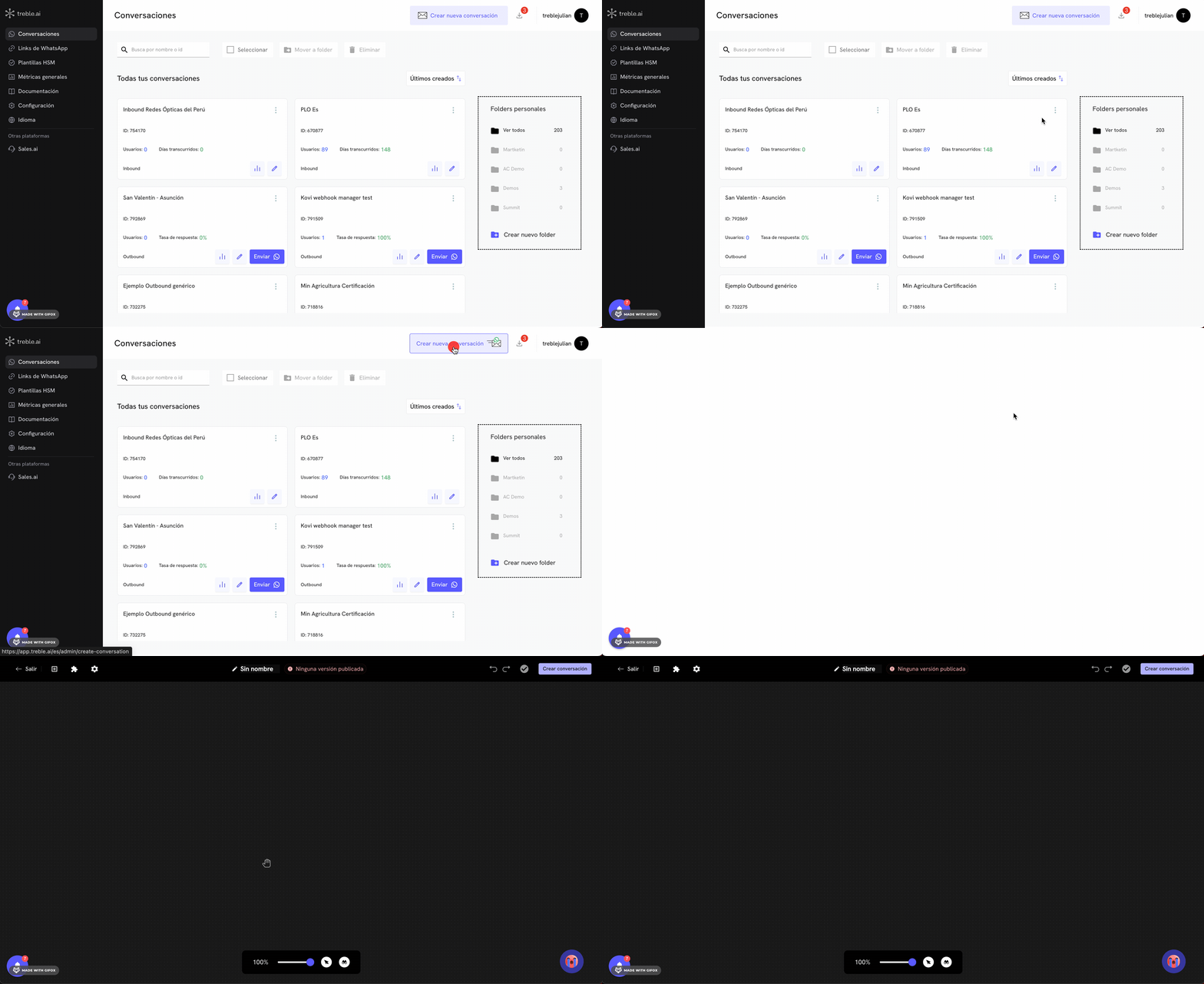
Go to the "Conversations" section and click the **"Create Conversation"** button. You can also configure a message read webhook in an existing flow. For this, go to the "Flows" section and click the **"Edit" ** button of your flow.
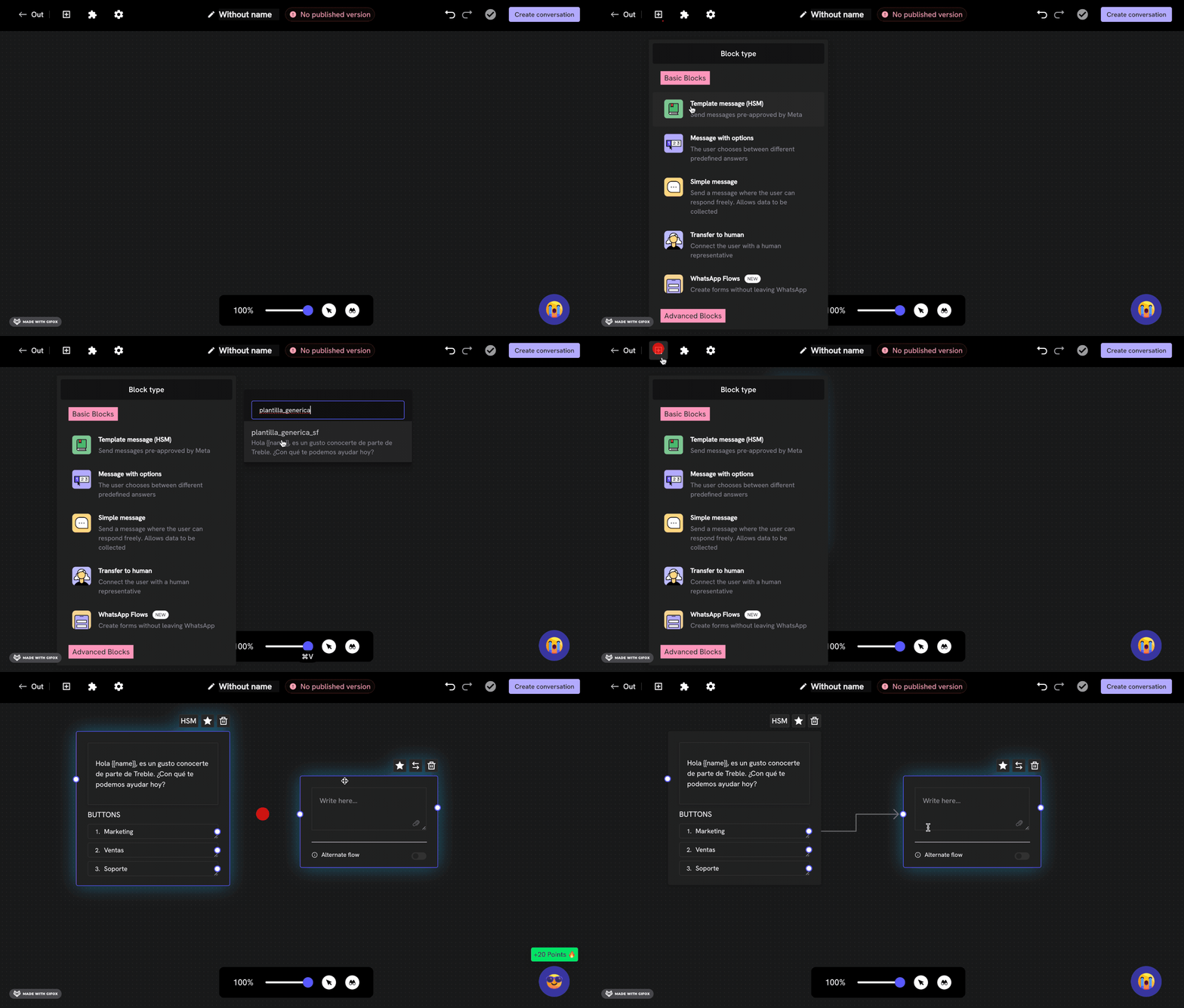
Let's add the first message block. Click the **"Add block" ** button. In this case, we're going to add a previously created and Meta-approved message template (HSM). Then we'll connect a simple message block with the HSM block.
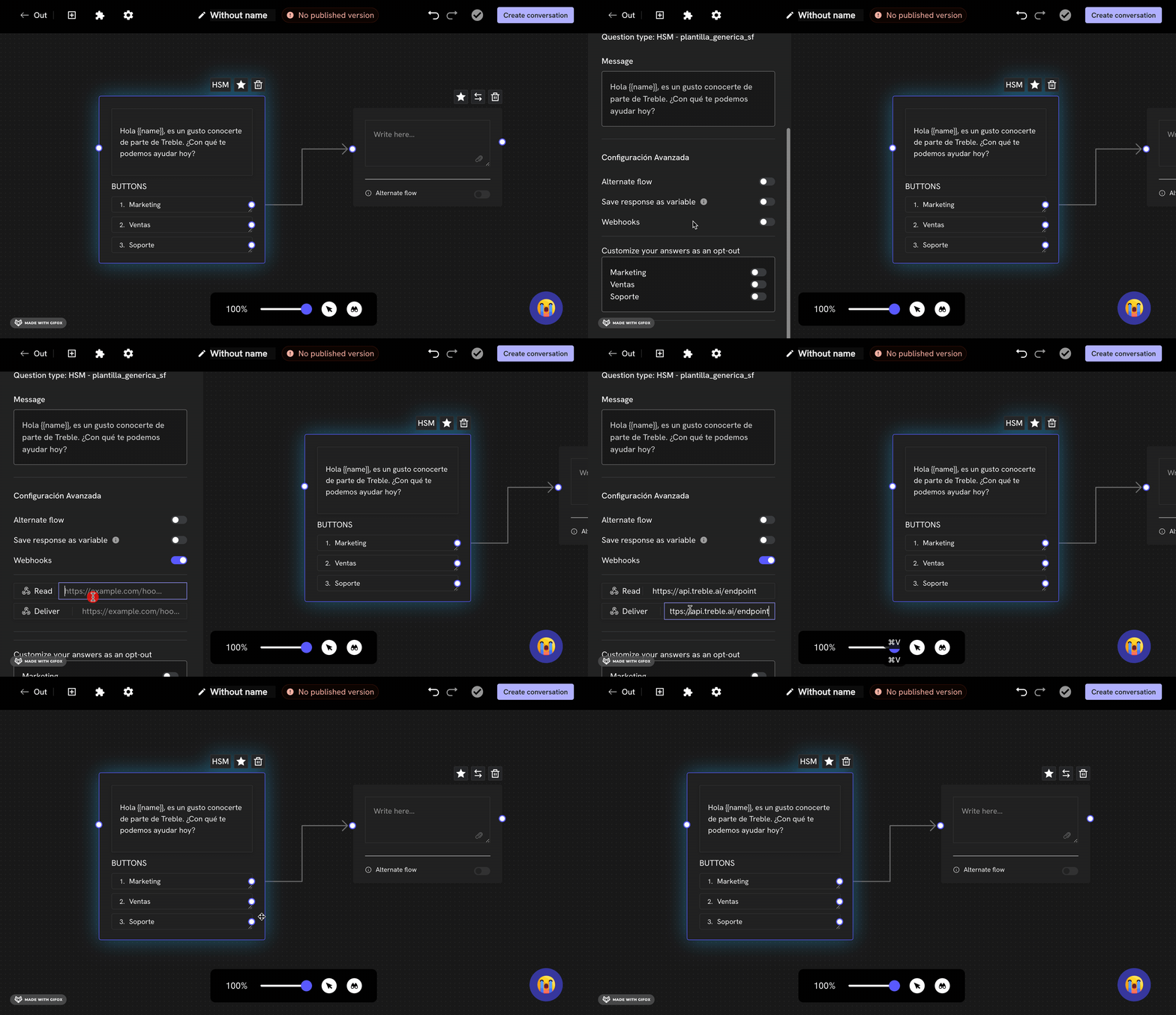
Now, let's double-click on the message block, a panel will open on the left. In this panel, let's click the **"Webhook" ** button. Two fields will appear:
* **"Read"**: Here you can add the endpoint to which you want the HTTP request to be sent when this message is read.
* **"Delivered"**: Here you can add the endpoint to which you want the HTTP request to be sent when this message is received.
If you're in a new flow, click the **"Publish Conversation"** button to save the flow. If you're in an existing flow, click the **"Save"** button to save the changes.
Ready! Now, when a customer reads or receives your message, the webhook will be triggered and send an HTTP request to your endpoint configured in Treble.
## Next step
To learn about the HTTP request body that is sent when a customer reads or receives a message, you can visit the following section:
Message Delivery Webhook Request Body
Message Read Webhook Request Body
## Tips
* Keep in mind that message read and delivery webhooks are triggered when a customer reads or receives a message and only apply to the message you configured. If you want it to be triggered on other messages, you must configure a webhook for each message.
* The message read webhook may not be triggered if the WhatsApp user has configured the read privacy mode.