> ## Documentation Index
> Fetch the complete documentation index at: https://help.treble.ai/llms.txt
> Use this file to discover all available pages before exploring further.
# Integrate Your Own AI in Treble
> Learn how to integrate your own AI in Treble so it can answer your user's questions.
## Before You Begin
Before starting with this guide, we recommend that you read multiple articles to understand concepts such as session variables, webhooks, and request trigger.
Understand how to use session variables in Treble.
Understand how to use webhooks in Treble.
Understand how to use request trigger in Treble.
This article explains how to connect your artificial intelligence (AI) system with Treble's conversational flows. This integration allows you to generate dynamic responses for your users based on data processed in your backend. Below, we show you how to structure your flow correctly:
## Initial Block
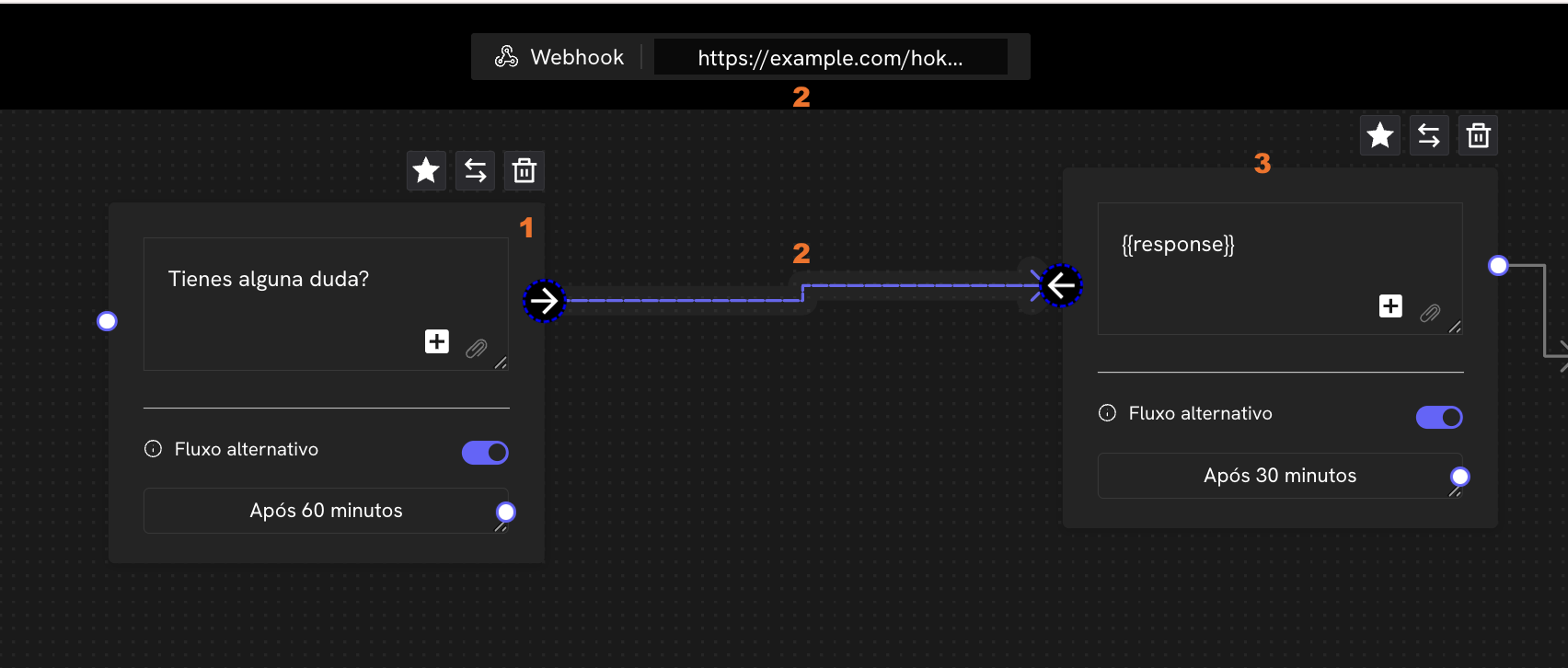
The first step is to create a **start block** that asks the user a question, such as: "Do you have any questions?", "How can I help you today?".
In the **output line** of this block, click to **add the webhook URL** that will trigger the request to your system.
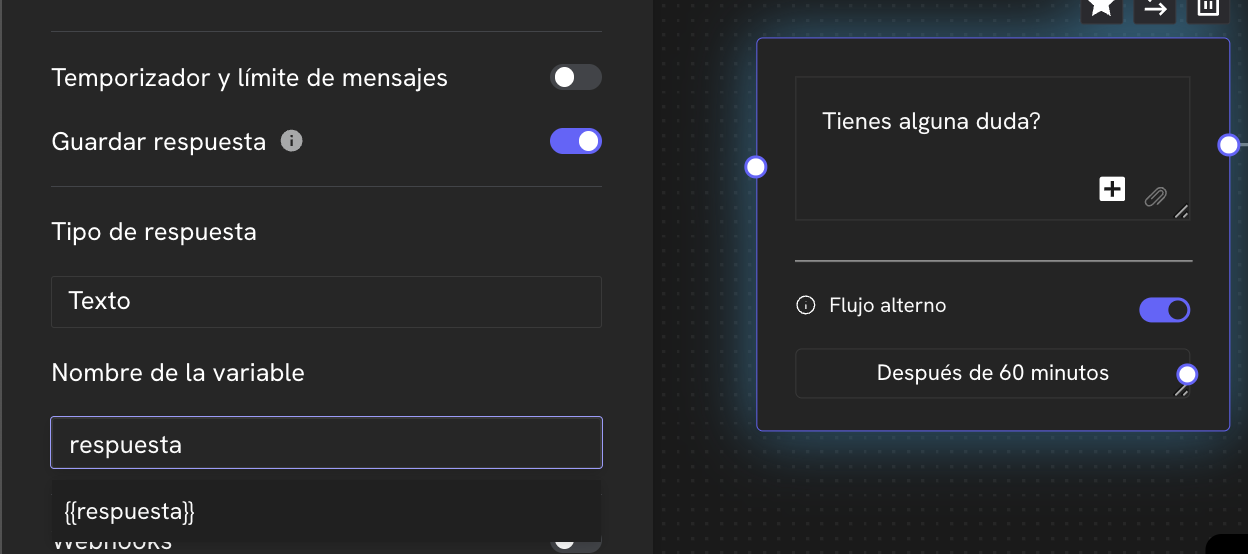
Save the user's response in this initial block to use it as a variable in the code. For this, activate the "save response" option and assign a name to the variable that will be sent in the webhook body.
 ## Processing and Response from Your System
Once the user responds:
1. Your system will receive the information.
2. It will process that information using AI.
3. It will send a *response* to Treble with the **generated response**.
4. This response should update the session variables, and will be the one shown to the user.
## Processing and Response from Your System
Once the user responds:
1. Your system will receive the information.
2. It will process that information using AI.
3. It will send a *response* to Treble with the **generated response**.
4. This response should update the session variables, and will be the one shown to the user.
 ## Requests that Take More than 10 Seconds: Using `[REQUEST_TRIGGER]`
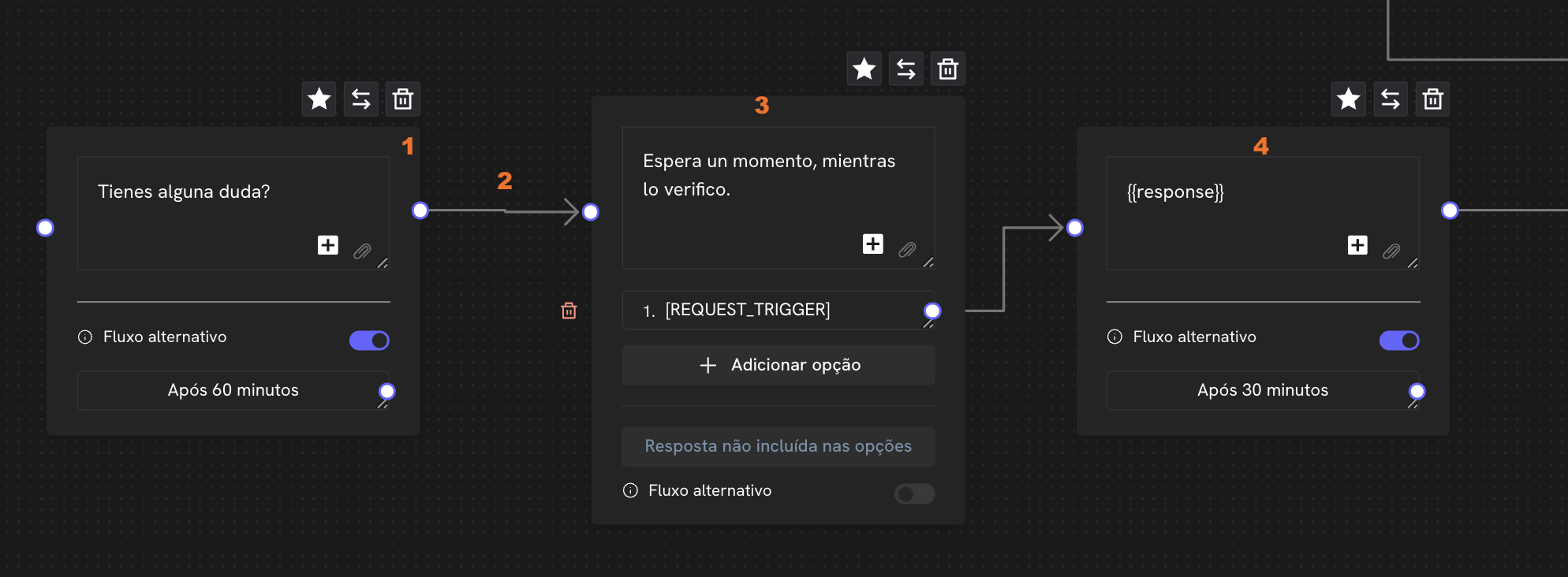
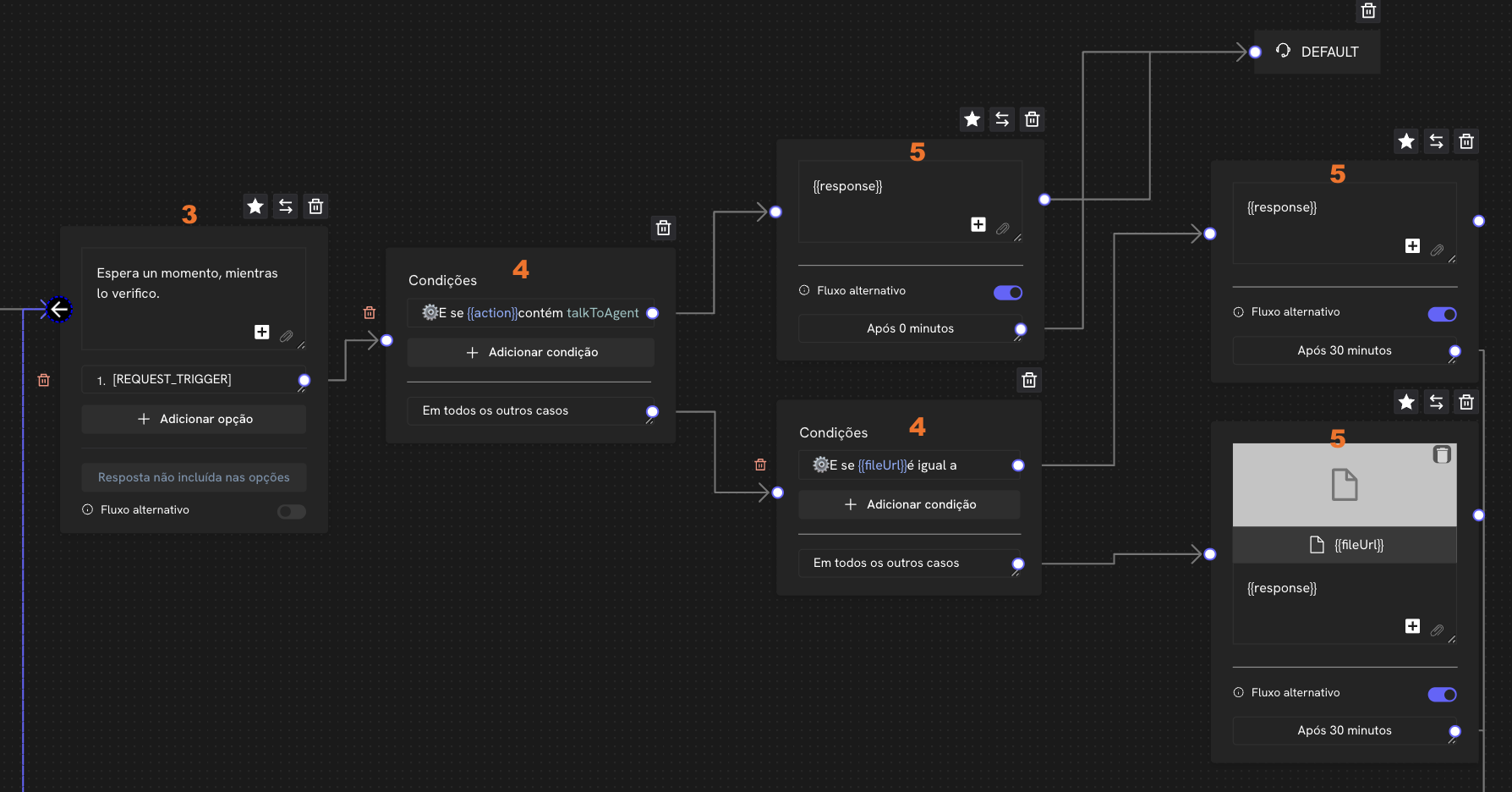
When AI processing may take longer, it is necessary to insert an **intermediate block** before sending the response:
* This block must have an **option labeled as `[REQUEST_TRIGGER]`**.
* This label indicates that, when the user reaches that node, the system should make a request and continue the flow through that route.
This allows **waiting for the AI's response** without the conversation being blocked.
## Requests that Take More than 10 Seconds: Using `[REQUEST_TRIGGER]`
When AI processing may take longer, it is necessary to insert an **intermediate block** before sending the response:
* This block must have an **option labeled as `[REQUEST_TRIGGER]`**.
* This label indicates that, when the user reaches that node, the system should make a request and continue the flow through that route.
This allows **waiting for the AI's response** without the conversation being blocked.
 ## Conditional Routes Based on AI Output
If your AI returns a specific value (for example, `"talkToAgent"` or `"fileUrl"`), you can **create branches in the flow** to offer personalized responses. To do this:
1. Send these values as variables from your system.
2. Insert a **conditional block** between the `[REQUEST_TRIGGER]` and the response.
3. Define the **different routes** that the user can follow according to the received variable.
## Conditional Routes Based on AI Output
If your AI returns a specific value (for example, `"talkToAgent"` or `"fileUrl"`), you can **create branches in the flow** to offer personalized responses. To do this:
1. Send these values as variables from your system.
2. Insert a **conditional block** between the `[REQUEST_TRIGGER]` and the response.
3. Define the **different routes** that the user can follow according to the received variable.
 ## Prevent Users from Getting Stuck
To prevent users from getting blocked within the flow:
* You can configure **alternate flows** to make **automatic follow-up**.
* This can serve to:
* Retry getting a response from the AI.
* Escalate the conversation to a human after a certain time without interaction.
## Prevent Users from Getting Stuck
To prevent users from getting blocked within the flow:
* You can configure **alternate flows** to make **automatic follow-up**.
* This can serve to:
* Retry getting a response from the AI.
* Escalate the conversation to a human after a certain time without interaction.
 ## Continuous Flow with Multiple Interactions
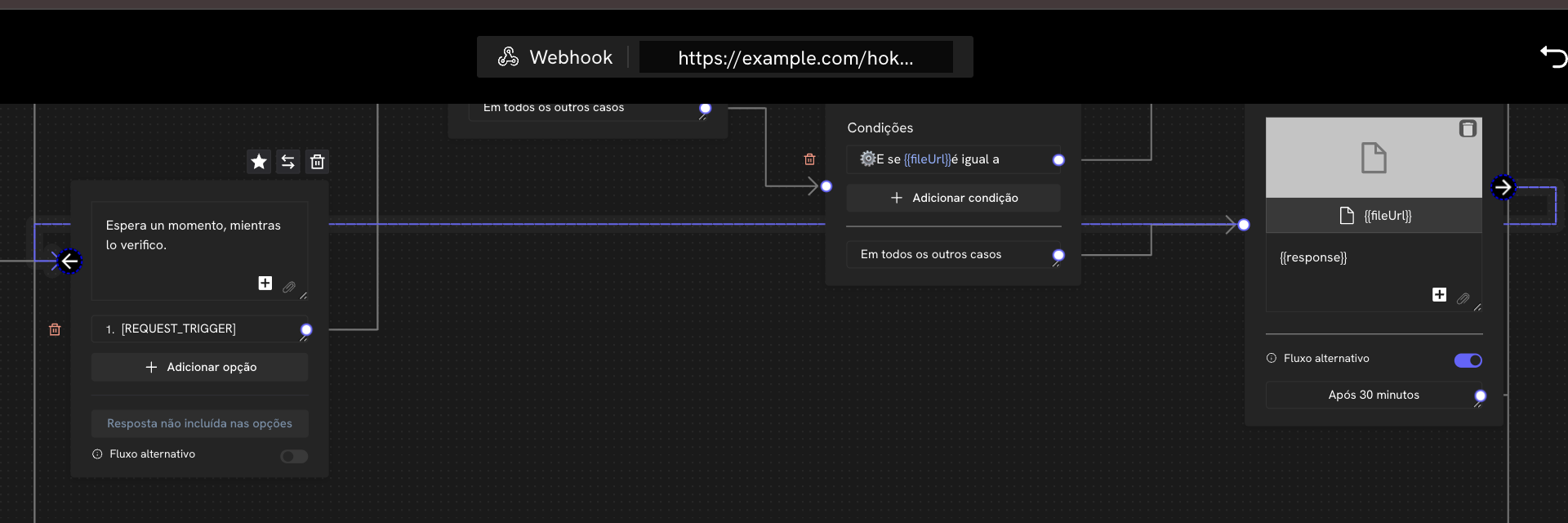
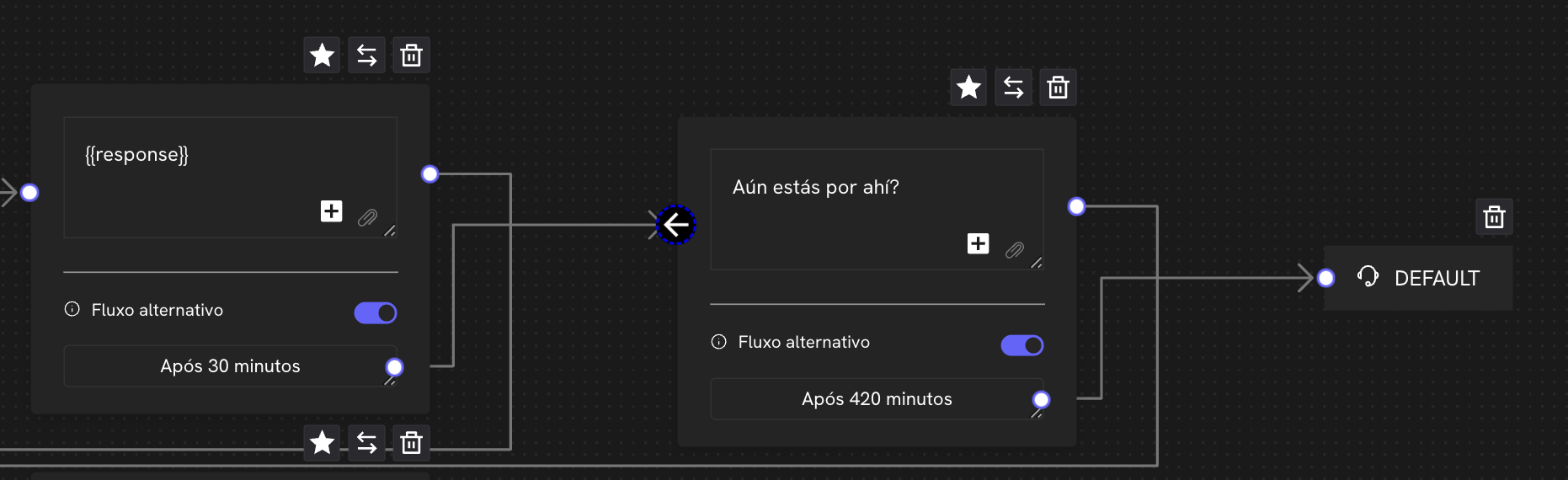
Whenever your system needs to **consult the AI again**, make sure that the **return line** to the block that processes the response **also includes the webhook**.
## Continuous Flow with Multiple Interactions
Whenever your system needs to **consult the AI again**, make sure that the **return line** to the block that processes the response **also includes the webhook**.