> ## Documentation Index
> Fetch the complete documentation index at: https://help.treble.ai/llms.txt
> Use this file to discover all available pages before exploring further.
# Multimedia Variable
> Learn how to configure multimedia variables in your conversation flows. This will allow you to add images, videos, audio, and attachments and send them dynamically in your conversations.
## Attach Multimedia - Multimedia Variable
In the Treble editor, you can attach multimedia to your messages. This will allow you to add images, videos, audio, and file attachments and send them dynamically in your conversations.
Normally, you do it as follows:
1. Go to the conversation node where you want to attach the multimedia.
2. Select the type of multimedia you want to attach.
3. Select the file you want to attach.
4. Click on **Attach**.
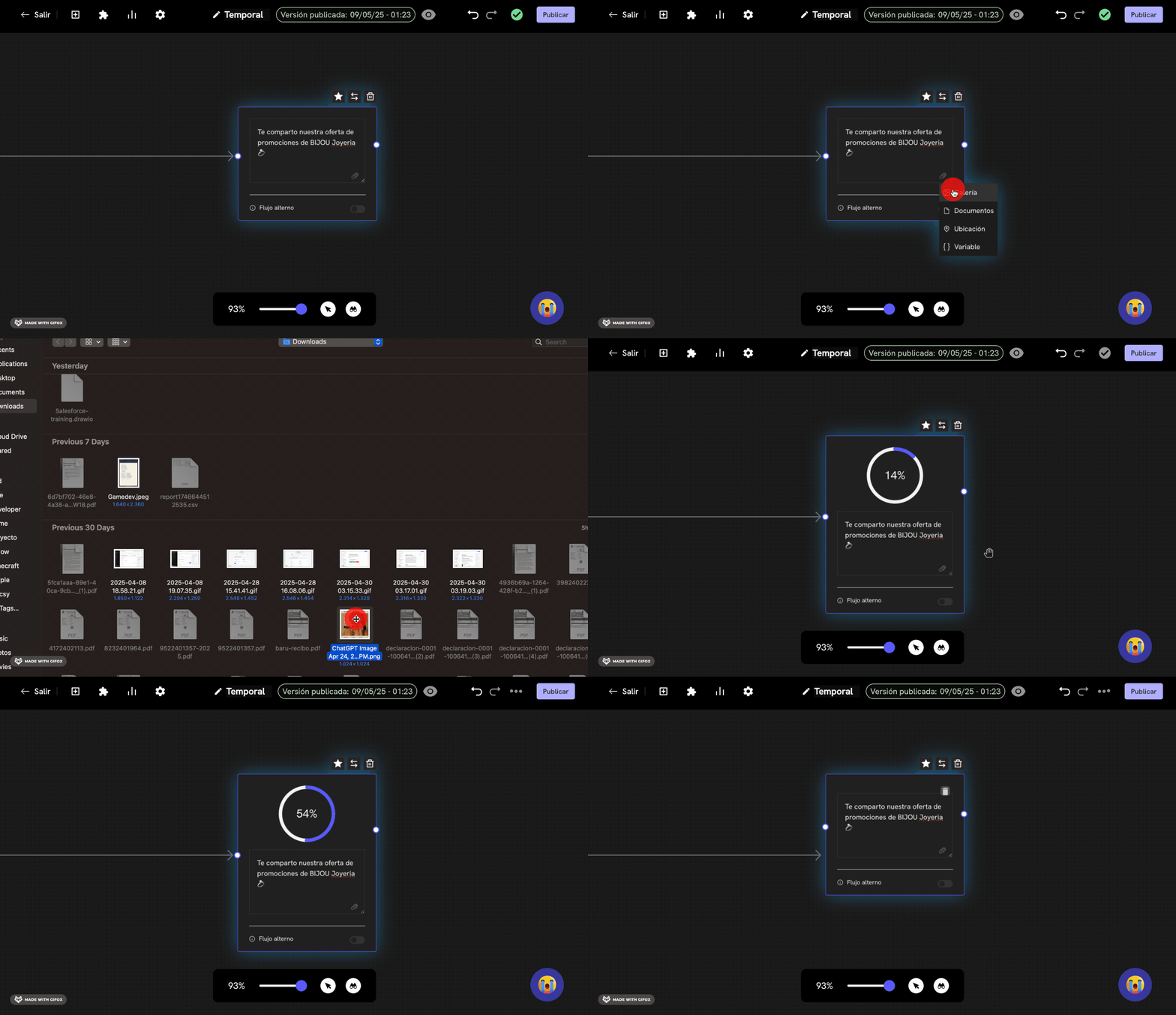
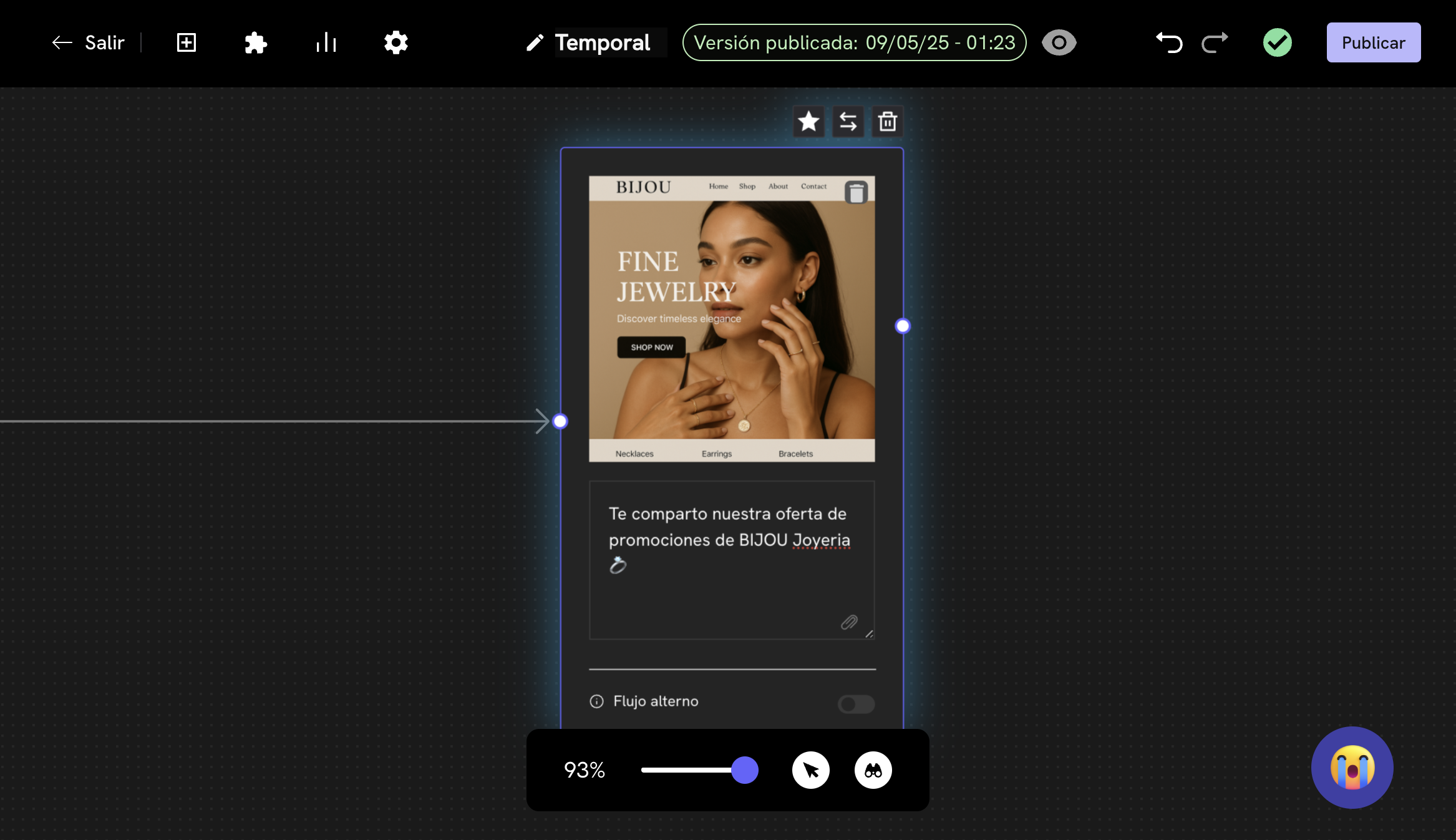 Now, let's see how you can make the multimedia content not a static content, but a dynamic one. For this, follow these steps:
1. Go to the conversation node where you want to attach the multimedia.
2. Click on the **Attach ** button.
3. Choose the **Variable** option.
4. This will open a modal where you can define the name of the variable. In our example, we will call it `media_url`. This variable is a `user_session_key`.
Now, let's see how you can make the multimedia content not a static content, but a dynamic one. For this, follow these steps:
1. Go to the conversation node where you want to attach the multimedia.
2. Click on the **Attach ** button.
3. Choose the **Variable** option.
4. This will open a modal where you can define the name of the variable. In our example, we will call it `media_url`. This variable is a `user_session_key`.
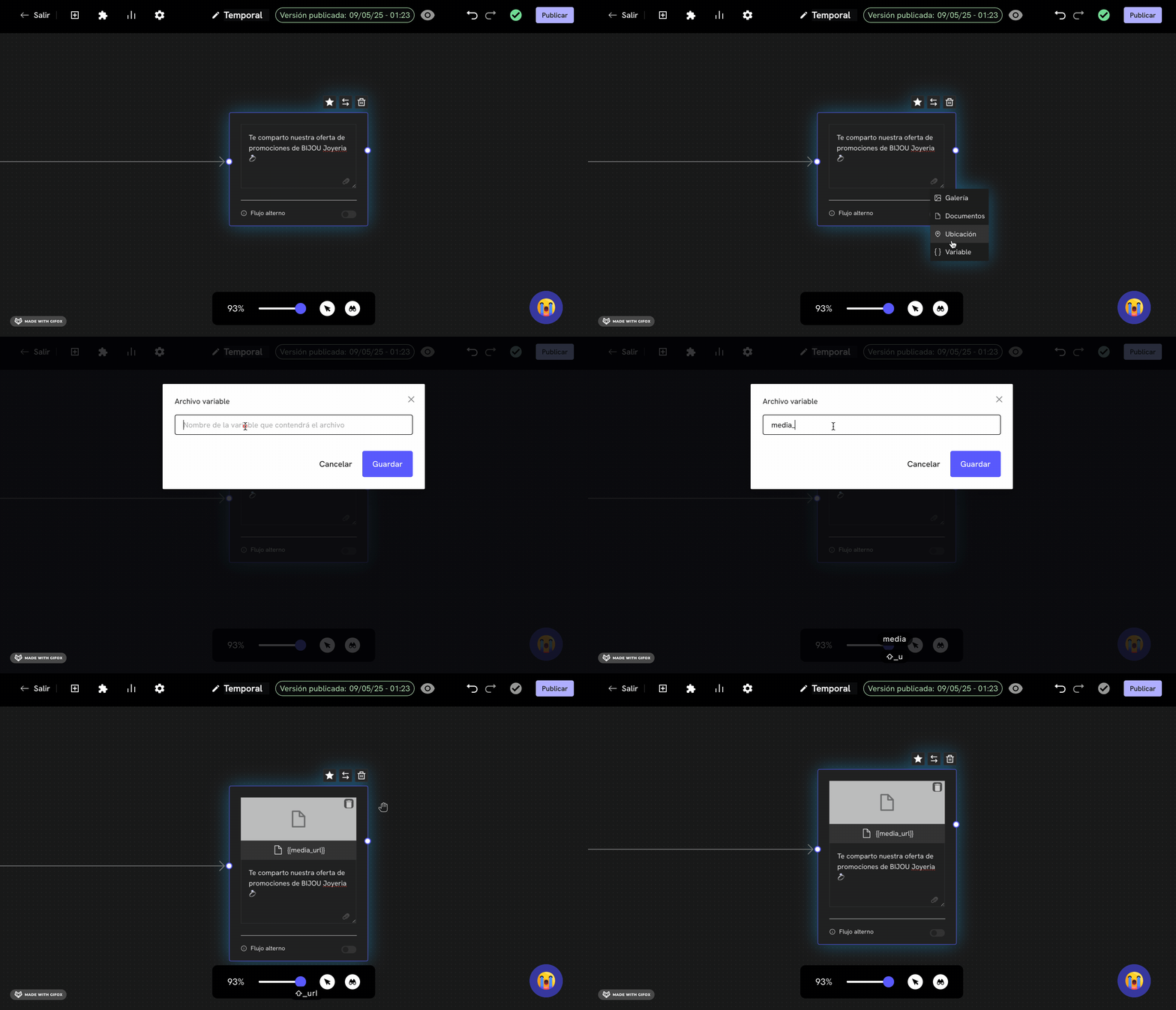 5. Done! Now, this variable (in our case `media_url`) will wait for the URL of the image, video, audio, or file attachment that you want to attach.
The URL of the image, video, audio, or file attachment must be a public URL. To check if it's a public URL, you can open it in your browser. If you can see the content, then it's a public URL.
## How is this variable handled?
You have the following options to handle this variable:
In this case, when you upload a CSV file, the content of the `media_url` column should be the URL of the image, video, audio, or file attachment that you want to attach. This will allow you to send a customized file URL for each user.
For example:
| country\_code | cellphone | name | media\_url |
| ------------- | ---------- | ------ | -------------------------------------------------------------- |
| 57 | 3132392346 | Felipe | [https://example.com/image.jpg](https://example.com/image.jpg) |
| 34 | 622902416 | Camila | [https://example.com/video.mp4](https://example.com/video.mp4) |
Learn how to send an outbound conversation.
In this case, when you make a call to the Treble API, you must send the content of the `media_url` variable in the call body. This variable will be part of the `user_session_keys` that are sent in the call.
For example:
```json theme={null}
{
[...],
"user_session_keys": [
{
"key": "media_url",
"value": "https://example.com/image.jpg"
}
]
}
```
Learn how to deploy a conversation flow by API.
In this case, when you make a call to a webhook, and before reaching the conversation node with the node that has the `media_url` variable, you can call a webhook, and in the response of this webhook, you can send the URL of the image, video, audio, or file attachment that you want to attach.
You can add the URL of the image, video, audio, or file attachment in a webhook response through the `user_session_keys`.
Done! Now you can attach multimedia dynamically in your conversations.
5. Done! Now, this variable (in our case `media_url`) will wait for the URL of the image, video, audio, or file attachment that you want to attach.
The URL of the image, video, audio, or file attachment must be a public URL. To check if it's a public URL, you can open it in your browser. If you can see the content, then it's a public URL.
## How is this variable handled?
You have the following options to handle this variable:
In this case, when you upload a CSV file, the content of the `media_url` column should be the URL of the image, video, audio, or file attachment that you want to attach. This will allow you to send a customized file URL for each user.
For example:
| country\_code | cellphone | name | media\_url |
| ------------- | ---------- | ------ | -------------------------------------------------------------- |
| 57 | 3132392346 | Felipe | [https://example.com/image.jpg](https://example.com/image.jpg) |
| 34 | 622902416 | Camila | [https://example.com/video.mp4](https://example.com/video.mp4) |
Learn how to send an outbound conversation.
In this case, when you make a call to the Treble API, you must send the content of the `media_url` variable in the call body. This variable will be part of the `user_session_keys` that are sent in the call.
For example:
```json theme={null}
{
[...],
"user_session_keys": [
{
"key": "media_url",
"value": "https://example.com/image.jpg"
}
]
}
```
Learn how to deploy a conversation flow by API.
In this case, when you make a call to a webhook, and before reaching the conversation node with the node that has the `media_url` variable, you can call a webhook, and in the response of this webhook, you can send the URL of the image, video, audio, or file attachment that you want to attach.
You can add the URL of the image, video, audio, or file attachment in a webhook response through the `user_session_keys`.
Done! Now you can attach multimedia dynamically in your conversations.